
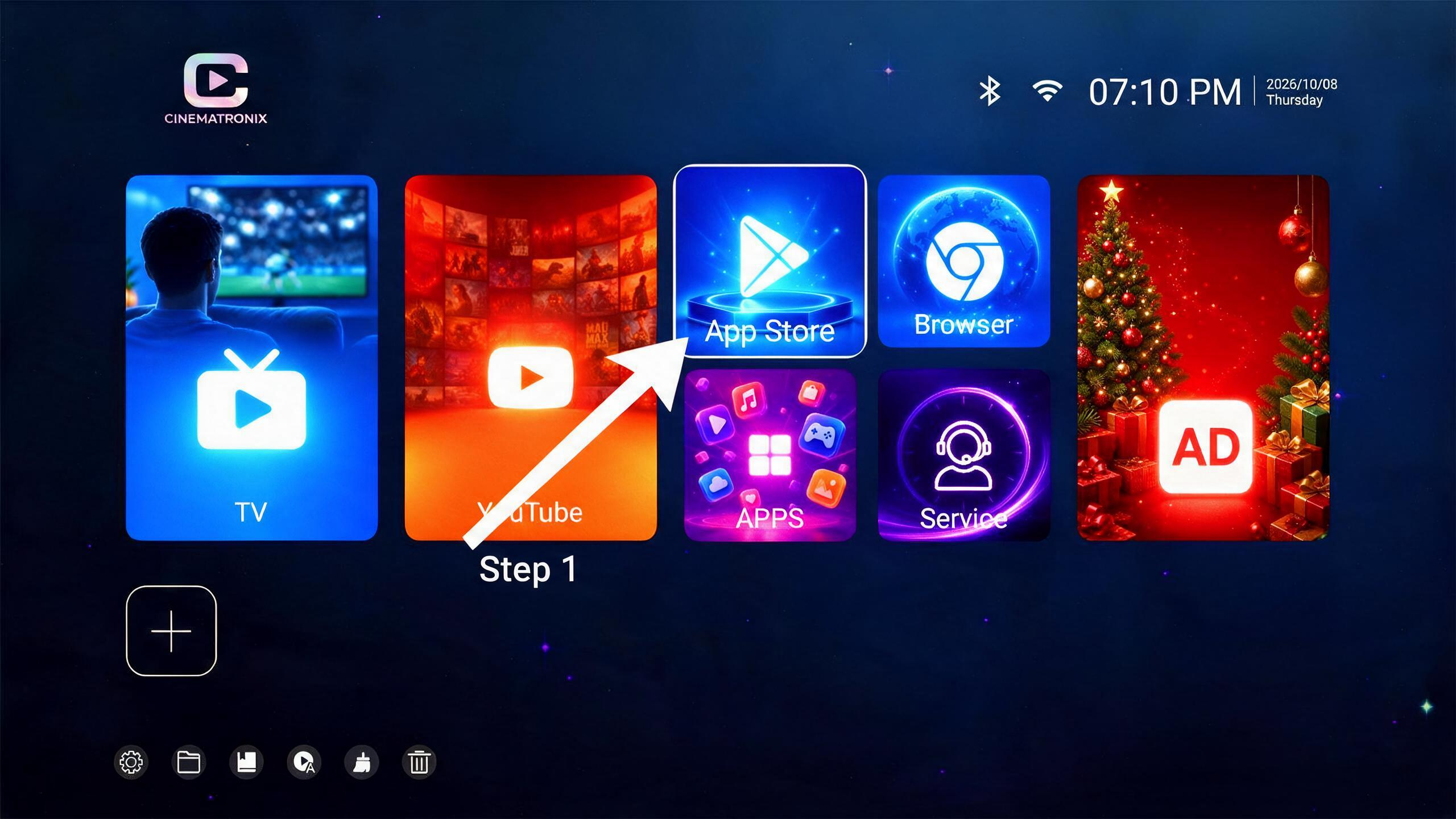
STEP 01
Open the app area
On the home screen, use the remote control to select “App Store.”
Use the connection reference first, then follow the three visual steps to find and open compatible apps on your TRONIBOX S3 Pro.
Connect the player to your TV and network before powering it on. Click the connection diagram to enlarge it.
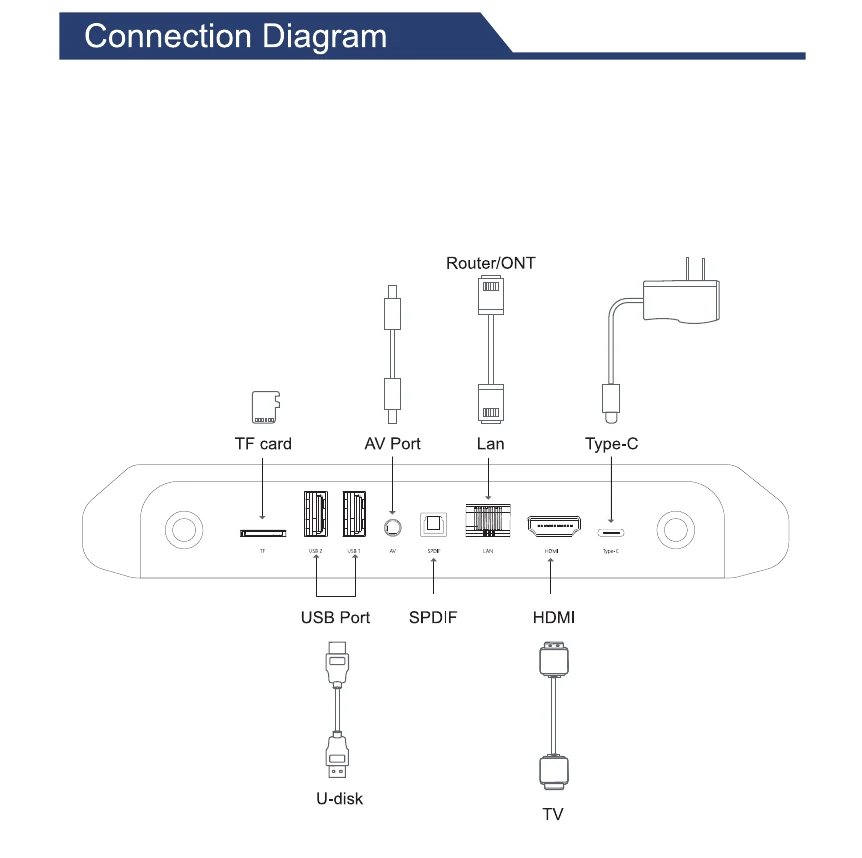
Connection diagram · Select to enlarge
Set up the app in a minute, then sit back, relax and enjoy your TV experience.
On the home screen, use the remote control to select “App Store.”
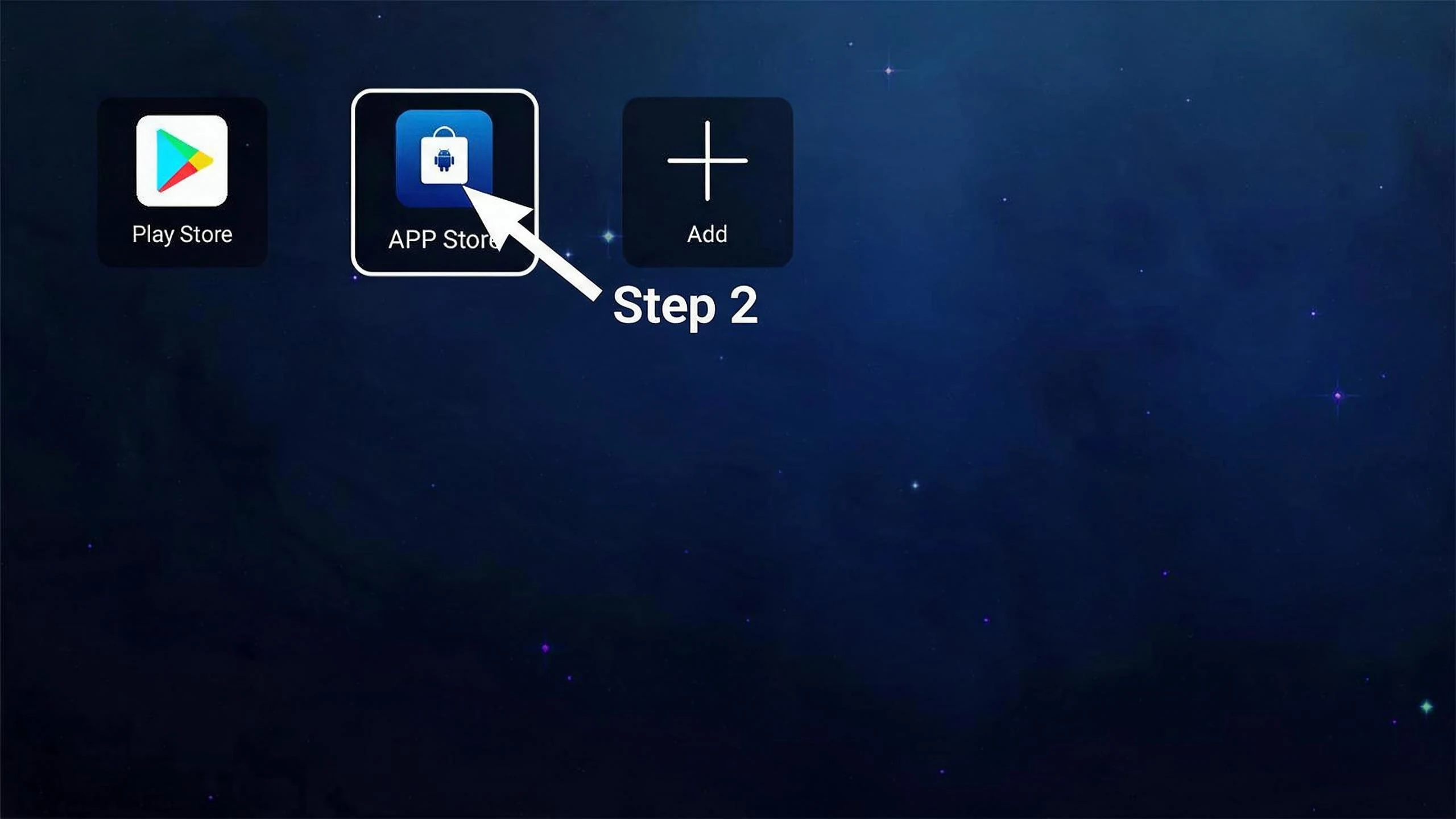
Select “App Store” to start the download and automatic installation. After the installation is complete, select “App Store” again. When permission requests appear, select “Allow” for all requested permissions.
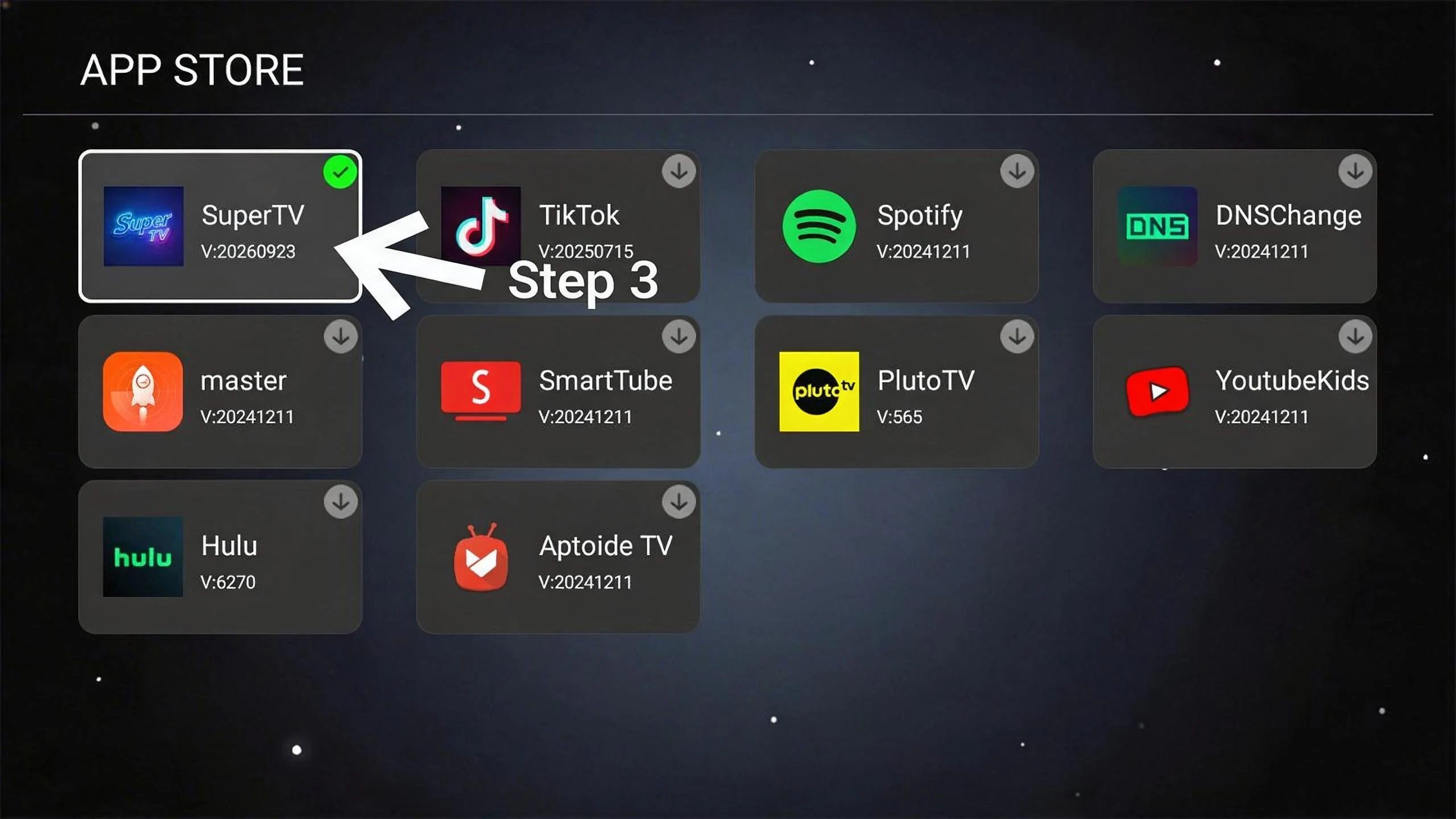
In the App Store, select “SuperTV” to start the download,then select “Install” to complete the installation process.
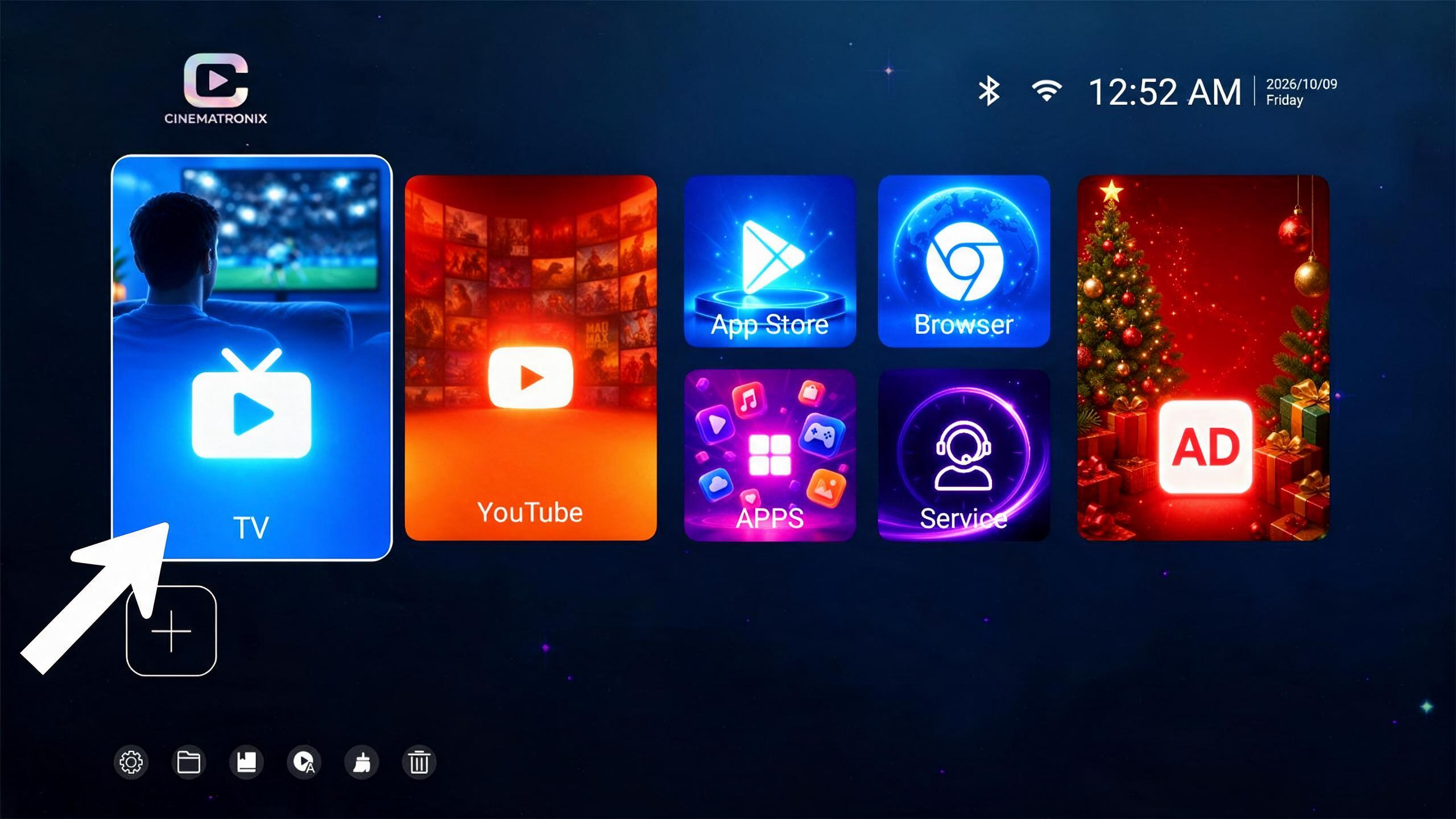
Once SuperTV has been installed, simply select “TV” on the home screen to open SuperTV automatically.
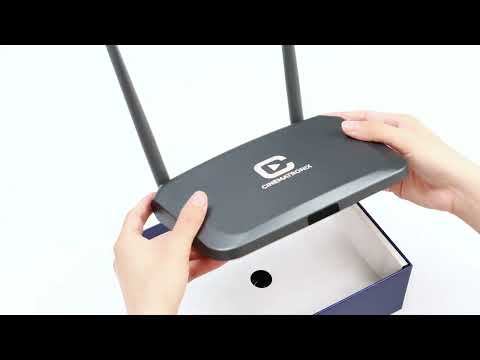
Experience the Tronibox S3 PRO — a sleek 4K media player with easy setup, reliable dual-band Wi-Fi and versatile connectivity for a smarter home entertainment experience.
Most first-time setup issues are worth checking against the TV input, network connection and power supply.
Check that the HDMI cable is firmly connected at both ends and that the TV is set to the HDMI input used by the player. Try another HDMI port or cable if available.
Check the Wi-Fi password and signal strength, restart the router if appropriate, or temporarily test a wired Ethernet connection. Network availability and performance depend on your router and internet provider.
Availability differs by app, region, software version and certification status. Confirm device compatibility directly with the service provider and check for software updates where available.
For business and product enquiries, please use the direct sales phone numbers or email addresses on our Business page ↗.